跳转至

在 Windows Server 上镜像启动驱动器

文档时效性说明

本文为早期笔记,可能存在版本过时、命令失效、链接失效、最佳实践变化等问题。请以官方最新文档为准。

原英文标题:Prequisites

操作系统: Windows Server 2022

磁盘配置: 2 块 32GB vmdk 虚拟磁盘,Windows Server 操作系统安装在 Disk 0 上,Disk 1 为空。

1. Activate Disk 1 in Disk Management

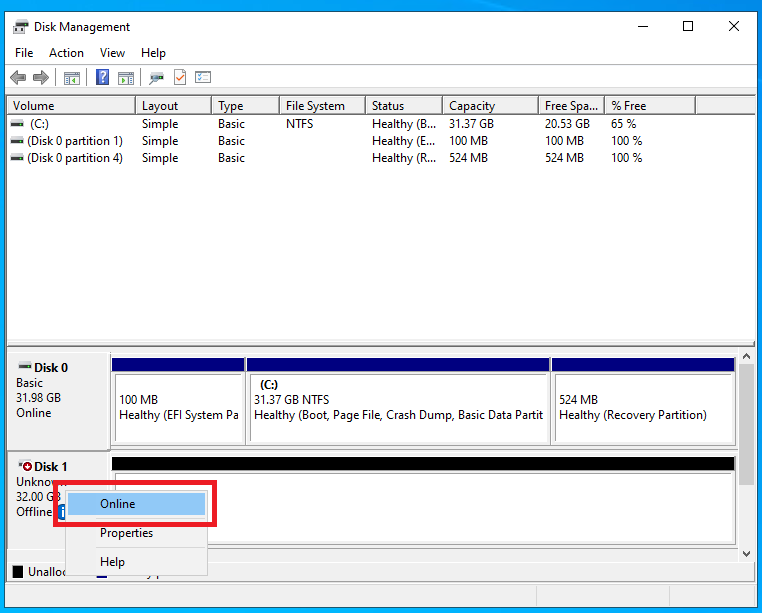
打开磁盘管理(右键点击屏幕左下角的 Windows 图标,然后点击“磁盘管理”),右键点击 Disk 1 并将其设为联机。

Activate Disk 1 in Disk Management

2. Create GPT partition table on Disk 1

以管理员身份打开 PowerShell,使用 diskpart 工具在 Disk 1 上创建 GPT 分区表,Disk 1 在磁盘管理中显示为“未初始化”。

PS C:\Users\Administrator> diskpart
DISKPART> select disk 1
Disk 1 is now the selected disk.
DISKPART> clean
DiskPart succeeded in cleaning the disk.
DISKPART> convert gpt
DiskPart successfully converted the selected disk to GPT format.
DISKPART> list part
  Partition ###  Type              Size     Offset
  -------------  ----------------  -------  -------
  Partition 1    Reserved            15 MB    17 KB
在创建 GPT 分区表时会生成一个默认分区,我们不需要它,需要将其删除。
1
2
3
4
DISKPART> select partition 1
Partition 1 is now the selected partition.
DISKPART> delete partition override
DiskPart successfully deleted the selected partition.

3. Gather partition information on Disk 0

下一步是收集 Disk 0 上的分区信息,以便在 Disk 1 上创建合适的分区。打开另一个 PowerShell 窗口,启动 diskpart 工具并选择 Disk 0:

1
2
3
4
5
6
7
8
9
DISKPART> select disk 0
Disk 0 is now the selected disk.
DISKPART> list partition
  Partition ###  Type              Size     Offset
  -------------  ----------------  -------  -------
  Partition 1    System             100 MB  1024 KB
  Partition 2    Reserved            16 MB   101 MB
  Partition 3    Primary             31 GB   117 MB
  Partition 4    Recovery           524 MB    31 GB

我的操作系统是 Windows Server 2022,默认情况下安装时创建了四个分区。我们需要在 Disk 1 上创建相同的分区。

4. Create partitions on Disk 1

创建 100MB 的 System EFI 分区:

DISKPART> select disk 1
Disk 1 is now the selected disk.
DISKPART> list partition
There are no partitions on this disk to show.
DISKPART> create partition EFI size=100
DiskPart succeeded in creating the specified partition.
DISKPART> list partition
  Partition ###  Type              Size     Offset
  -------------  ----------------  -------  -------
* Partition 1    System             100 MB  1024 KB
DISKPART> format fs=fat32 quick
  100 percent completed
DiskPart successfully formatted the volume.
然后创建 16MB 的 Reserved 分区:
1
2
3
4
5
6
7
8
9
DISKPART> select disk 1
Disk 1 is now the selected disk.
DISKPART> create partition MSR size=16
DiskPart succeeded in creating the specified partition.
DISKPART> list partition
  Partition ###  Type              Size     Offset
  -------------  ----------------  -------  -------
  Partition 1    System             100 MB  1024 KB
* Partition 2    Reserved            16 MB   101 MB
然后是 Primary 分区,在创建该分区之前,我们需要准确知道其大小(以 MB 为单位)。一种获取该大小的方法是对字节偏移量进行计算。首先获取 Disk 0 上 partition 3 和 partition 4 的字节偏移量:
DISKPART> select disk 0
Disk 0 is now the selected disk.
DISKPART> list partition
  Partition ###  Type              Size     Offset
  -------------  ----------------  -------  -------
  Partition 1    System             100 MB  1024 KB
  Partition 2    Reserved            16 MB   101 MB
  Partition 3    Primary             31 GB   117 MB
  Partition 4    Recovery           524 MB    31 GB
DISKPART> select partition 3
Partition 3 is now the selected partition.
DISKPART> detail partition
Partition 3
Type    : ebd0a0a2-b9e5-4433-87c0-68b6b72699c7
Hidden  : No
Required: No
Attrib  : 0X8000000000000000
Offset in Bytes: 122683392
  Volume ###  Ltr  Label        Fs     Type        Size     Status     Info
  ----------  ---  -----------  -----  ----------  -------  ---------  --------
* Volume 0     C                NTFS   Partition     31 GB  Healthy    Boot
DISKPART> select partition 4
Partition 4 is now the selected partition.
DISKPART> detail partition
Partition 4
Type    : de94bba4-06d1-4d40-a16a-bfd50179d6ac
Hidden  : Yes
Required: Yes
Attrib  : 0X8000000000000001
Offset in Bytes: 33808187392
  Volume ###  Ltr  Label        Fs     Type        Size     Status     Info
  ----------  ---  -----------  -----  ----------  -------  ---------  --------
* Volume 2                      NTFS   Partition    524 MB  Healthy    Hidden
partition 3 的大小(字节)等于 partition 4 的偏移量减去 partition 3 的偏移量,即 33808187392 - 122683392 = 33685504000 字节,除以 1024 得到 32896000 千字节,再除以 1024 得到 32125 兆字节。因此 partition 3 的大小为 32125 MB。通过以下命令创建该分区:
DISKPART> select disk 1
Disk 1 is now the selected disk.
DISKPART> create partition PRIMARY size=32125
DiskPart succeeded in creating the specified partition.
DISKPART> format quick fs=ntfs
  100 percent completed
DiskPart successfully formatted the volume.
DISKPART> list partition
  Partition ###  Type              Size     Offset
  -------------  ----------------  -------  -------
  Partition 1    System             100 MB  1024 KB
  Partition 2    Reserved            16 MB   101 MB
* Partition 3    Primary             31 GB   117 MB
最后,创建 Recovery 分区:
1
2
3
4
5
6
7
DISKPART> select disk 1
Disk 1 is now the selected disk.
DISKPART> create partition PRIMARY size=524
DiskPart succeeded in creating the specified partition.
DISKPART> format quick fs=ntfs
  100 percent completed
DiskPart successfully formatted the volume.
Windows 使用 ID 来区分 Recovery 分区和普通 NTFS 分区,因此需要将该分区的 ID 设置为表示恢复驱动器的 ID。首先从 Disk 0 上的 recovery 分区获取 ID:
DISKPART> select disk 0
Disk 0 is now the selected disk.
DISKPART> select partition 4
Partition 4 is now the selected partition.
DISKPART> detail partition
Partition 4
Type    : de94bba4-06d1-4d40-a16a-bfd50179d6ac
Hidden  : Yes
Required: Yes
Attrib  : 0X8000000000000001
Offset in Bytes: 33808187392
  Volume ###  Ltr  Label        Fs     Type        Size     Status     Info
  ----------  ---  -----------  -----  ----------  -------  ---------  --------
* Volume 2                      NTFS   Partition    524 MB  Healthy    Hidden
复制该分区的 UUID(即“TYPE”字段),在 Windows Server 2022 上它应为 de94bba4-06d1-4d40-a16a-bfd50179d6ac,但可能有所不同。然后设置 Disk 1 上 recovery 分区的 UUID:
DISKPART> select disk 1
Disk 1 is now the selected disk.
DISKPART> select partition 4
Partition 4 is now the selected partition.
DISKPART> set id=de94bba4-06d1-4d40-a16a-bfd50179d6ac
DiskPart successfully set the partition ID.
DISKPART> detail partition
Partition 4
Type    : de94bba4-06d1-4d40-a16a-bfd50179d6ac
Hidden  : Yes
Required: No
Attrib  : 0000000000000000
Offset in Bytes: 33808187392
  Volume ###  Ltr  Label        Fs     Type        Size     Status     Info
  ----------  ---  -----------  -----  ----------  -------  ---------  --------
* Volume 4                      NTFS   Partition    524 MB  Healthy    Hidden

5. Convert Disk 0 and Disk 1 to Dynamic Disk

1
2
3
4
5
6
7
8
DISKPART> select disk 0
Disk 0 is now the selected disk.
DISKPART> convert dynamic
DiskPart successfully converted the selected disk to dynamic format.
DISKPART> select disk 1
Disk 1 is now the selected disk.
DISKPART> convert dynamic
DiskPart successfully converted the selected disk to dynamic format.

6. Mirror C Drive on Disk 1

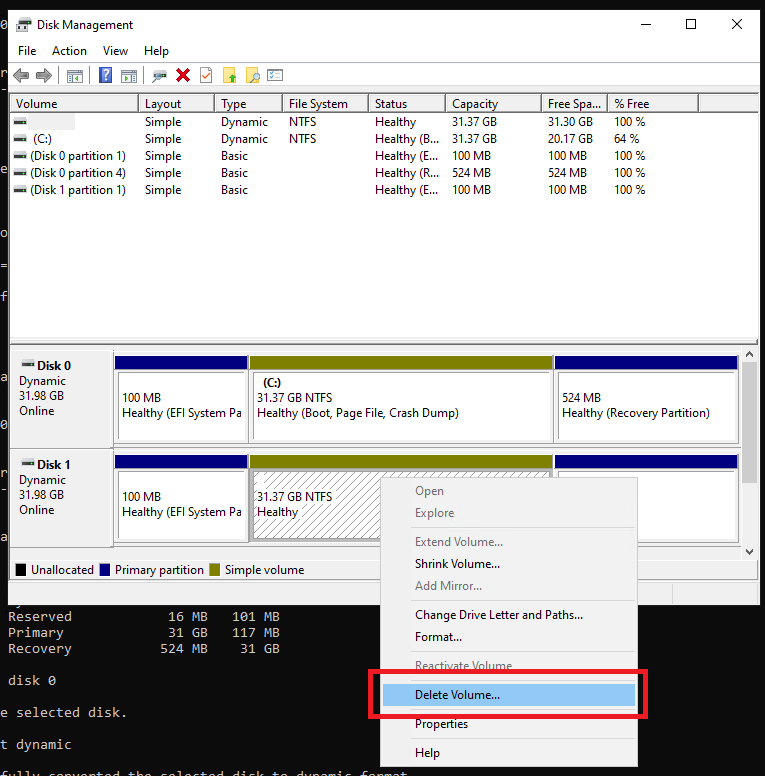
首先删除 Disk 1 上的分区:

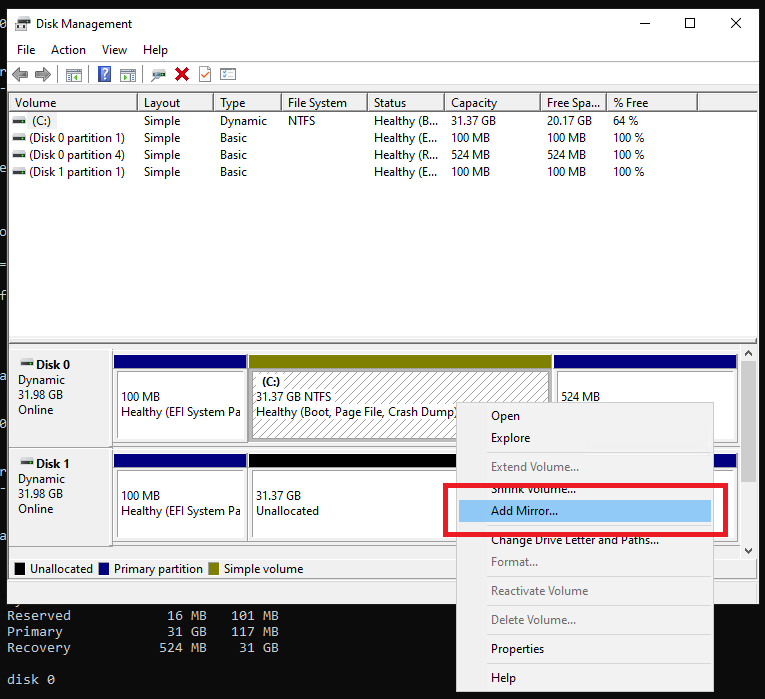
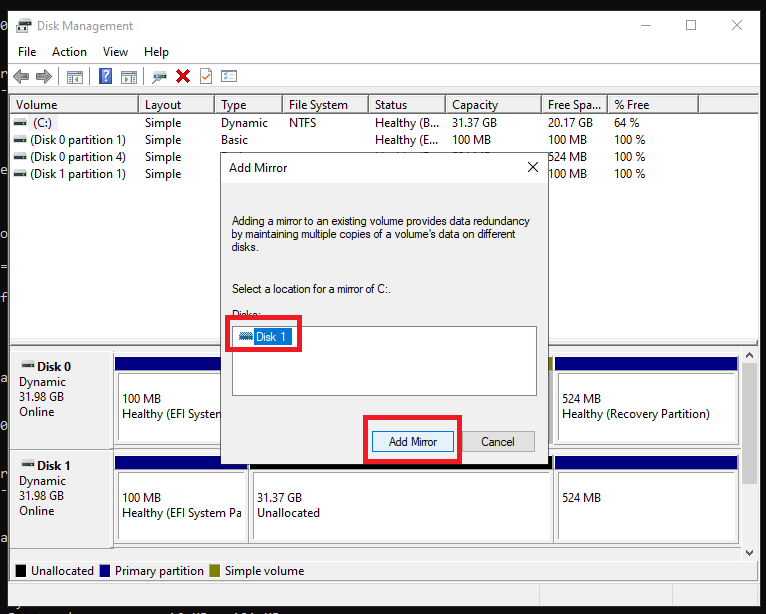
点击添加镜像:

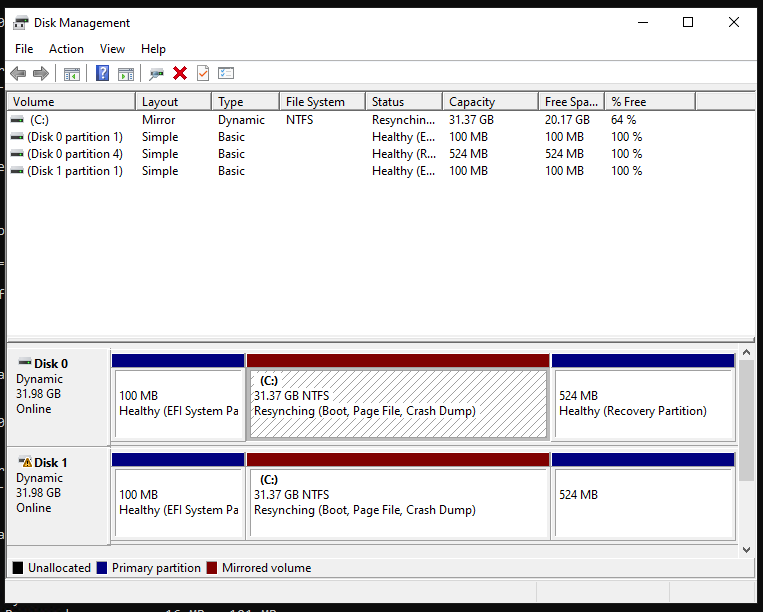
然后两个分区应该开始同步:

7. Clone the Recovery partition

为两个 recovery 分区分配驱动器号:

DISKPART> select disk 0
Disk 0 is now the selected disk.
DISKPART> select partition 4
Partition 4 is now the selected partition.
DISKPART> assign letter=q
DiskPart successfully assigned the drive letter or mount point.
DISKPART> select disk 1
Disk 1 is now the selected disk.
DISKPART> select partition 4
Partition 4 is now the selected partition.
DISKPART> assign letter=z
DiskPart successfully assigned the drive letter or mount point.
打开另一个 PowerShell 窗口并运行:
PS C:\Users\Administrator> robocopy.exe q:\ z:\ * /e /copyall /dcopy:t /xd "System Volume Information"
...Output omitted...
然后移除驱动器号(在 DISKPART PowerShell 窗口中):
DISKPART> select disk 0
Disk 0 is now the selected disk.
DISKPART> select partition 4
Partition 4 is now the selected partition.
DISKPART> remove
DiskPart successfully removed the drive letter or mount point.
DISKPART> select disk 1
Disk 1 is now the selected disk.
DISKPART> select partition 4
Partition 4 is now the selected partition.
DISKPART> remove
DiskPart successfully removed the drive letter or mount point.

8. Clone the EFI partition

分配驱动器号:

DISKPART> select disk 0
Disk 0 is now the selected disk.
DISKPART> select partition 1
Partition 1 is now the selected partition.
DISKPART> assign letter=p
DiskPart successfully assigned the drive letter or mount point.
DISKPART> select disk 1
Disk 1 is now the selected disk.
DISKPART> select partition 1
Partition 1 is now the selected partition.
DISKPART> assign letter=s
DiskPart successfully assigned the drive letter or mount point.
使用以下命令显示当前的 BCD 引导加载程序配置:
PS C:\Users\Administrator> bcdedit /enum

Windows Boot Manager
--------------------
identifier              {bootmgr}
device                  partition=P:
path                    \EFI\Microsoft\Boot\bootmgfw.efi
description             Windows Boot Manager
locale                  en-US
inherit                 {globalsettings}
bootshutdowndisabled    Yes
default                 {current}
resumeobject            {063973bf-d0ac-11ed-b884-cfa59b967f58}
displayorder            {current}
                        {063973c4-d0ac-11ed-b884-cfa59b967f58}
toolsdisplayorder       {memdiag}
timeout                 30

Windows Boot Loader
-------------------
identifier              {current}
device                  partition=C:
path                    \Windows\system32\winload.efi
description             Windows Server
locale                  en-US
inherit                 {bootloadersettings}
recoverysequence        {063973c1-d0ac-11ed-b884-cfa59b967f58}
displaymessageoverride  Recovery
recoveryenabled         Yes
isolatedcontext         Yes
allowedinmemorysettings 0x15000075
osdevice                partition=C:
systemroot              \Windows
resumeobject            {063973bf-d0ac-11ed-b884-cfa59b967f58}
nx                      OptOut

Windows Boot Loader
-------------------
identifier              {063973c4-d0ac-11ed-b884-cfa59b967f58}
device                  partition=C:
path                    \Windows\system32\winload.efi
description             Windows Server - secondary plex
locale                  en-US
inherit                 {bootloadersettings}
recoverysequence        {063973c1-d0ac-11ed-b884-cfa59b967f58}
displaymessageoverride  Recovery
recoveryenabled         Yes
isolatedcontext         Yes
allowedinmemorysettings 0x15000075
osdevice                partition=C:
systemroot              \Windows
resumeobject            {063973bf-d0ac-11ed-b884-cfa59b967f58}
nx                      OptOut
创建镜像时,VDS 服务已自动为第二块镜像磁盘添加了 BCD 条目(标记为“Windows Server 2022 – secondary plex”)。为了在第一块磁盘故障时能够从第二块磁盘上的 EFI 分区启动,必须修改 BCD 配置。为此,复制当前的 Windows Boot Manager 配置:
PS C:\Users\Administrator> bcdedit /copy "{bootmgr}" /d "Windows Boot Manager Cloned"
The entry was successfully copied to {063973c5-d0ac-11ed-b884-cfa59b967f58}.
然后复制配置 ID,并在以下命令中使用它,将配置复制到 Disk 1:
PS C:\Users\Administrator> bcdedit /set "{063973c5-d0ac-11ed-b884-cfa59b967f58}" device partition=s:
The operation completed successfully.
然后必须将 BCD 存储从 Disk 0 上的 EFI 分区复制到 Disk 1:
1
2
3
4
PS C:\Users\Administrator> bcdedit /export P:\EFI\Microsoft\Boot\BCD2
The operation completed successfully.
PS C:\Users\Administrator> robocopy p:\ s:\ /e /r:0
...Output omitted...
重命名 Disk 1 上的 BCD 存储:
PS C:\Users\Administrator> Rename-Item -Path "S:\EFI\Microsoft\Boot\BCD2" -NewName "BCD"
并删除 Disk 0 上的副本:
PS C:\Users\Administrator> Remove-Item "P:\EFI\Microsoft\Boot\BCD2"
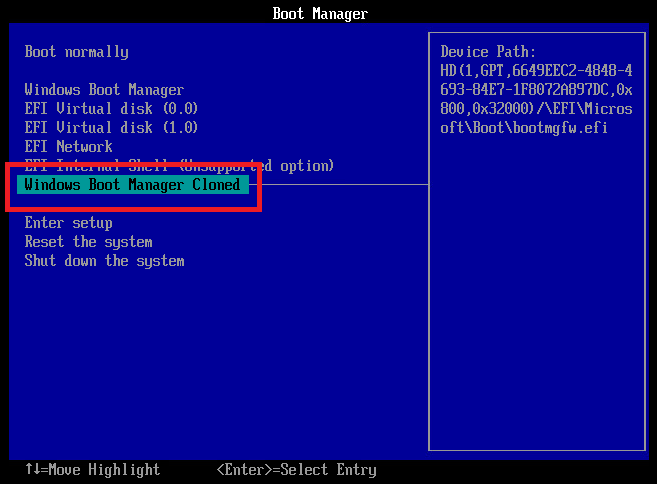
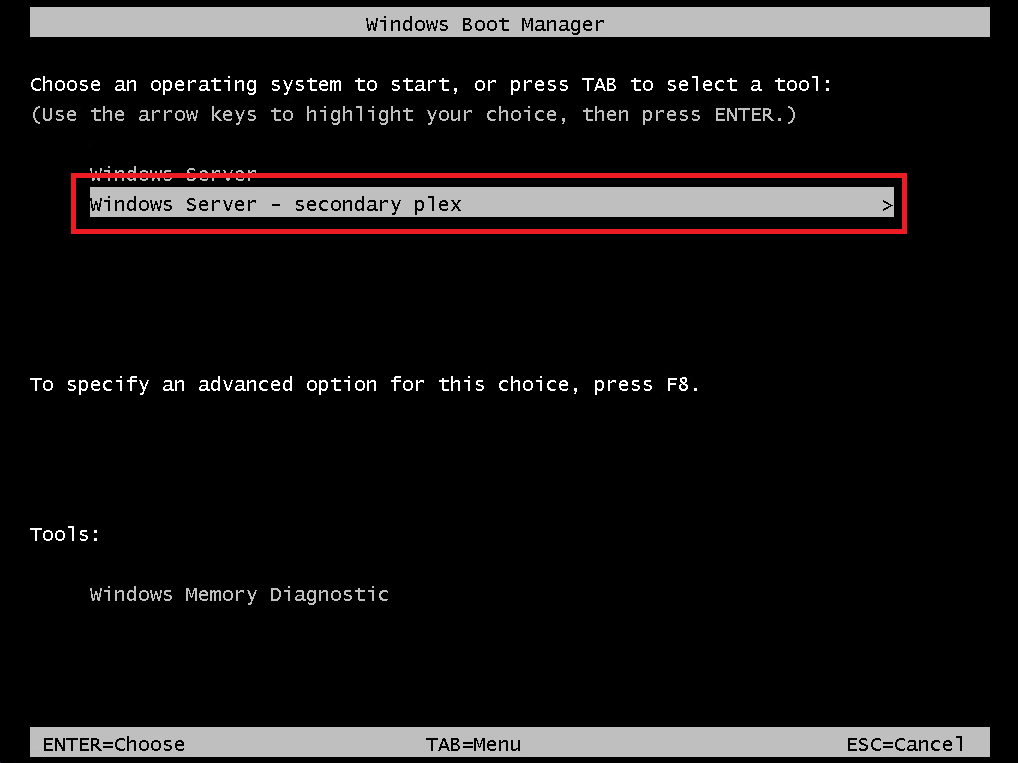
然后重启并验证 BIOS 启动设备列表中是否出现“Windows Boot Manager Cloned”。 并检查启动选项“Windows Server 2022 – secondary plex”是否可以启动。

9. References

https://learn.microsoft.com/en-us/windows-server/administration/windows-commands/create-partition-primary

https://www.clouvider.com/knowledge_base/how-to-make-raid-1-on-windows-server/

https://www.thewindowsclub.com/mirror-boot-hard-drive-windows-10

https://woshub.com/software-boot-mirror-gpt-windows/


9.1 原文(English)


tags: - Windows


10. Prequisites

文档时效性说明

本文为早期笔记,可能存在版本过时、命令失效、链接失效、最佳实践变化等问题。请以官方最新文档为准。

Operating System: Windows Server 2022

Disk configuration: 32GB vmdk virtual disks * 2, Windows Server OS installed on Disk 0 while Disk 1 is empty.

11. Activate Disk 1 in Disk Management

Open Disk Management (Right click the Windows icon on the bottom left corner of screen, and click "Disk Management"), right click on Disk 1 and make it Online.

Activate Disk 1 in Disk Management

12. Create GPT partition table on Disk 1

Open PowerShell as Administrator, and use the diskpart utility to create GPT partition table on Disk 1, which is shown as "Not initialized" in Disk Management.

PS C:\Users\Administrator> diskpart
DISKPART> select disk 1
Disk 1 is now the selected disk.
DISKPART> clean
DiskPart succeeded in cleaning the disk.
DISKPART> convert gpt
DiskPart successfully converted the selected disk to GPT format.
DISKPART> list part
  Partition ###  Type              Size     Offset
  -------------  ----------------  -------  -------
  Partition 1    Reserved            15 MB    17 KB
A default partition is created during GPT partition table creating, we do not need this and this partition needs to be deleted.
1
2
3
4
DISKPART> select partition 1
Partition 1 is now the selected partition.
DISKPART> delete partition override
DiskPart successfully deleted the selected partition.

13. Gather partition information on Disk 0

The next step is to gather partition information on Disk 0, so that the proper partitions can be created on Disk 1. Open another PowerShell window, and start the diskpart utility then select Disk 0:

1
2
3
4
5
6
7
8
9
DISKPART> select disk 0
Disk 0 is now the selected disk.
DISKPART> list partition
  Partition ###  Type              Size     Offset
  -------------  ----------------  -------  -------
  Partition 1    System             100 MB  1024 KB
  Partition 2    Reserved            16 MB   101 MB
  Partition 3    Primary             31 GB   117 MB
  Partition 4    Recovery           524 MB    31 GB

My OS is Windows Server 2022, and by default, four partitions was created during installation. We need to create identical partition on Disk 1.

14. Create partitions on Disk 1

Create the 100MB System EFI partition:

DISKPART> select disk 1
Disk 1 is now the selected disk.
DISKPART> list partition
There are no partitions on this disk to show.
DISKPART> create partition EFI size=100
DiskPart succeeded in creating the specified partition.
DISKPART> list partition
  Partition ###  Type              Size     Offset
  -------------  ----------------  -------  -------
* Partition 1    System             100 MB  1024 KB
DISKPART> format fs=fat32 quick
  100 percent completed
DiskPart successfully formatted the volume.
Then create 16MB Reserved partition:
1
2
3
4
5
6
7
8
9
DISKPART> select disk 1
Disk 1 is now the selected disk.
DISKPART> create partition MSR size=16
DiskPart succeeded in creating the specified partition.
DISKPART> list partition
  Partition ###  Type              Size     Offset
  -------------  ----------------  -------  -------
  Partition 1    System             100 MB  1024 KB
* Partition 2    Reserved            16 MB   101 MB
And the Primary Partition, before creating the partition, we need to know exactly the size of the partition in MB. One way to get this size in MB is to do some calculation on offset in bytes. First get the offset in bytes of partition 3 and 4 on Disk 0:
DISKPART> select disk 0
Disk 0 is now the selected disk.
DISKPART> list partition
  Partition ###  Type              Size     Offset
  -------------  ----------------  -------  -------
  Partition 1    System             100 MB  1024 KB
  Partition 2    Reserved            16 MB   101 MB
  Partition 3    Primary             31 GB   117 MB
  Partition 4    Recovery           524 MB    31 GB
DISKPART> select partition 3
Partition 3 is now the selected partition.
DISKPART> detail partition
Partition 3
Type    : ebd0a0a2-b9e5-4433-87c0-68b6b72699c7
Hidden  : No
Required: No
Attrib  : 0X8000000000000000
Offset in Bytes: 122683392
  Volume ###  Ltr  Label        Fs     Type        Size     Status     Info
  ----------  ---  -----------  -----  ----------  -------  ---------  --------
* Volume 0     C                NTFS   Partition     31 GB  Healthy    Boot
DISKPART> select partition 4
Partition 4 is now the selected partition.
DISKPART> detail partition
Partition 4
Type    : de94bba4-06d1-4d40-a16a-bfd50179d6ac
Hidden  : Yes
Required: Yes
Attrib  : 0X8000000000000001
Offset in Bytes: 33808187392
  Volume ###  Ltr  Label        Fs     Type        Size     Status     Info
  ----------  ---  -----------  -----  ----------  -------  ---------  --------
* Volume 2                      NTFS   Partition    524 MB  Healthy    Hidden
The size of partition 3 in bytes is the offset of partition 4 minus the offset of partition 3, which is 33808187392 - 122683392 = 33685504000 bytes, divide by 1024 we get 32896000 kilobytes, and divide again we get 32125 megabytes. So the size of partition 3 is 32125 MB. Create the partition by:
DISKPART> select disk 1
Disk 1 is now the selected disk.
DISKPART> create partition PRIMARY size=32125
DiskPart succeeded in creating the specified partition.
DISKPART> format quick fs=ntfs
  100 percent completed
DiskPart successfully formatted the volume.
DISKPART> list partition
  Partition ###  Type              Size     Offset
  -------------  ----------------  -------  -------
  Partition 1    System             100 MB  1024 KB
  Partition 2    Reserved            16 MB   101 MB
* Partition 3    Primary             31 GB   117 MB
At last, the Recovery partition:
1
2
3
4
5
6
7
DISKPART> select disk 1
Disk 1 is now the selected disk.
DISKPART> create partition PRIMARY size=524
DiskPart succeeded in creating the specified partition.
DISKPART> format quick fs=ntfs
  100 percent completed
DiskPart successfully formatted the volume.
Windows uses an id to identify Recovery partitions from normal NTFS partition, so we need to set the id of this partition to the id which represents a recovery drive. First get the id from the recovery partition on Disk 0:
DISKPART> select disk 0
Disk 0 is now the selected disk.
DISKPART> select partition 4
Partition 4 is now the selected partition.
DISKPART> detail partition
Partition 4
Type    : de94bba4-06d1-4d40-a16a-bfd50179d6ac
Hidden  : Yes
Required: Yes
Attrib  : 0X8000000000000001
Offset in Bytes: 33808187392
  Volume ###  Ltr  Label        Fs     Type        Size     Status     Info
  ----------  ---  -----------  -----  ----------  -------  ---------  --------
* Volume 2                      NTFS   Partition    524 MB  Healthy    Hidden
Copy the UUID which is the "TYPE" of the partition, it should be de94bba4-06d1-4d40-a16a-bfd50179d6ac on Windows Server 2022 but may be different. Then set the UUID of the recovery partition on Disk 1:
DISKPART> select disk 1
Disk 1 is now the selected disk.
DISKPART> select partition 4
Partition 4 is now the selected partition.
DISKPART> set id=de94bba4-06d1-4d40-a16a-bfd50179d6ac
DiskPart successfully set the partition ID.
DISKPART> detail partition
Partition 4
Type    : de94bba4-06d1-4d40-a16a-bfd50179d6ac
Hidden  : Yes
Required: No
Attrib  : 0000000000000000
Offset in Bytes: 33808187392
  Volume ###  Ltr  Label        Fs     Type        Size     Status     Info
  ----------  ---  -----------  -----  ----------  -------  ---------  --------
* Volume 4                      NTFS   Partition    524 MB  Healthy    Hidden

15. Convert Disk 0 and Disk 1 to Dynamic Disk

1
2
3
4
5
6
7
8
DISKPART> select disk 0
Disk 0 is now the selected disk.
DISKPART> convert dynamic
DiskPart successfully converted the selected disk to dynamic format.
DISKPART> select disk 1
Disk 1 is now the selected disk.
DISKPART> convert dynamic
DiskPart successfully converted the selected disk to dynamic format.

16. Mirror C Drive on Disk 1

First Delete the partition on Disk 1:

Click add mirror:

Then the two partitions should start syncing:

17. Clone the Recovery partition

Assign drive letter for two recovery partitions:

DISKPART> select disk 0
Disk 0 is now the selected disk.
DISKPART> select partition 4
Partition 4 is now the selected partition.
DISKPART> assign letter=q
DiskPart successfully assigned the drive letter or mount point.
DISKPART> select disk 1
Disk 1 is now the selected disk.
DISKPART> select partition 4
Partition 4 is now the selected partition.
DISKPART> assign letter=z
DiskPart successfully assigned the drive letter or mount point.
Open another PowerShell window and run:
PS C:\Users\Administrator> robocopy.exe q:\ z:\ * /e /copyall /dcopy:t /xd "System Volume Information"
...Output omitted...
Then remove the drive letters (on DISKPART PowerShell window):
DISKPART> select disk 0
Disk 0 is now the selected disk.
DISKPART> select partition 4
Partition 4 is now the selected partition.
DISKPART> remove
DiskPart successfully removed the drive letter or mount point.
DISKPART> select disk 1
Disk 1 is now the selected disk.
DISKPART> select partition 4
Partition 4 is now the selected partition.
DISKPART> remove
DiskPart successfully removed the drive letter or mount point.

18. Clone the EFI partition

Assign drive letters:

DISKPART> select disk 0
Disk 0 is now the selected disk.
DISKPART> select partition 1
Partition 1 is now the selected partition.
DISKPART> assign letter=p
DiskPart successfully assigned the drive letter or mount point.
DISKPART> select disk 1
Disk 1 is now the selected disk.
DISKPART> select partition 1
Partition 1 is now the selected partition.
DISKPART> assign letter=s
DiskPart successfully assigned the drive letter or mount point.
Display the current BCD bootloader configuration using the following command:
PS C:\Users\Administrator> bcdedit /enum

Windows Boot Manager
--------------------
identifier              {bootmgr}
device                  partition=P:
path                    \EFI\Microsoft\Boot\bootmgfw.efi
description             Windows Boot Manager
locale                  en-US
inherit                 {globalsettings}
bootshutdowndisabled    Yes
default                 {current}
resumeobject            {063973bf-d0ac-11ed-b884-cfa59b967f58}
displayorder            {current}
                        {063973c4-d0ac-11ed-b884-cfa59b967f58}
toolsdisplayorder       {memdiag}
timeout                 30

Windows Boot Loader
-------------------
identifier              {current}
device                  partition=C:
path                    \Windows\system32\winload.efi
description             Windows Server
locale                  en-US
inherit                 {bootloadersettings}
recoverysequence        {063973c1-d0ac-11ed-b884-cfa59b967f58}
displaymessageoverride  Recovery
recoveryenabled         Yes
isolatedcontext         Yes
allowedinmemorysettings 0x15000075
osdevice                partition=C:
systemroot              \Windows
resumeobject            {063973bf-d0ac-11ed-b884-cfa59b967f58}
nx                      OptOut

Windows Boot Loader
-------------------
identifier              {063973c4-d0ac-11ed-b884-cfa59b967f58}
device                  partition=C:
path                    \Windows\system32\winload.efi
description             Windows Server - secondary plex
locale                  en-US
inherit                 {bootloadersettings}
recoverysequence        {063973c1-d0ac-11ed-b884-cfa59b967f58}
displaymessageoverride  Recovery
recoveryenabled         Yes
isolatedcontext         Yes
allowedinmemorysettings 0x15000075
osdevice                partition=C:
systemroot              \Windows
resumeobject            {063973bf-d0ac-11ed-b884-cfa59b967f58}
nx                      OptOut
When creating a mirror, VDS service has automatically added the BCD entry for the second mirror disk (labeled "Windows Server 2022 – secondary plex"). In order to allow booting from EFI partition on the second disk if first disk failure, you must change your BCD configuration. To do it, copy the current Windows Boot Manager configuration:
PS C:\Users\Administrator> bcdedit /copy "{bootmgr}" /d "Windows Boot Manager Cloned"
The entry was successfully copied to {063973c5-d0ac-11ed-b884-cfa59b967f58}.
Then copy the configuration ID and use it in the following command to copy the configuration to Disk 1:
PS C:\Users\Administrator> bcdedit /set "{063973c5-d0ac-11ed-b884-cfa59b967f58}" device partition=s:
The operation completed successfully.
Then you must copy your BCD store from the EFI partition on Disk 0 to Disk 1:
1
2
3
4
PS C:\Users\Administrator> bcdedit /export P:\EFI\Microsoft\Boot\BCD2
The operation completed successfully.
PS C:\Users\Administrator> robocopy p:\ s:\ /e /r:0
...Output omitted...
Rename the BCD store on Disk 1:
PS C:\Users\Administrator> Rename-Item -Path "S:\EFI\Microsoft\Boot\BCD2" -NewName "BCD"
And delete the copy on Disk 0:
PS C:\Users\Administrator> Remove-Item "P:\EFI\Microsoft\Boot\BCD2"
Then reboot and verify if there is a 'Windows Boot Manager Cloned' in your BIOS boot device list. And check if boot option "Windows Server 2022 – secondary plex" boots.
19. References

https://learn.microsoft.com/en-us/windows-server/administration/windows-commands/create-partition-primary

https://www.clouvider.com/knowledge_base/how-to-make-raid-1-on-windows-server/

https://www.thewindowsclub.com/mirror-boot-hard-drive-windows-10

https://woshub.com/software-boot-mirror-gpt-windows/